Overlay and picture-in-picture
The overlay lane is the one that turns an editor from a trimmer into a compositor. Two pictures on screen at once is how a reaction video works, how a tutorial shows both the screen and the person, and how a product shot appears next to the person describing it.
In short
- The overlay lane holds a second picture layer above the main video track, at any time and any size.
- Direct manipulation in the preview: drag to move, pinch to scale, twist to rotate.
- Overlays are graded, keyframed and trimmed independently of the clip underneath.
- It costs two decoded streams — the proxy pipeline is what keeps that smooth on a phone.
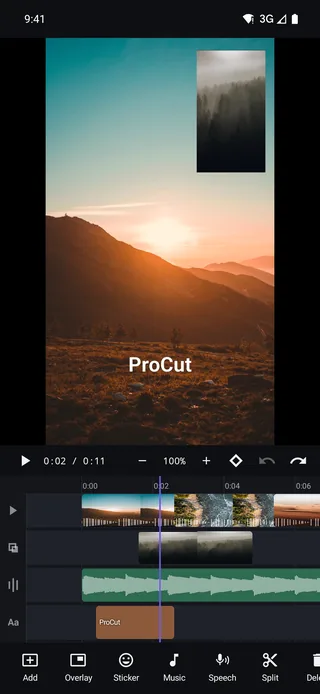
The overlay lane
Tap Overlay in the editor toolbar and pick a clip; it lands on the lane directly above the main video track. Like the text, audio and sticker lanes, it is free rather than magnetic — the overlay sits at the time you place it and stays there while you re-cut the footage underneath.
An overlay clip accepts video or photos, and several can be stacked when a layout needs more than one inset.
Placing and sizing the inset
Everything happens directly in the preview:
- Drag to reposition.
- Pinch to scale — from a small corner inset up to full frame.
- Twist with two fingers to rotate.
Scaled all the way up, an overlay simply replaces the picture underneath, which is a legitimate technique: a full-frame overlay with animated opacity gives you a cross-dissolve you control frame by frame, on top of the automatic ones in the transitions.
Independently everything
The overlay is a full clip, not a decoration. It has its own:
| Property | Meaning for an overlay |
|---|---|
| Trim | It appears and disappears when you say, regardless of the cuts below |
| Speed | A slow-motion inset over a real-time background is a valid choice |
| Colour | Graded separately, so an inset can be matched to — or deliberately set against — the shot behind it |
| Volume | Kept, ducked or muted independently of the main clip's audio |
| Keyframes | Scale, position, rotation and opacity all animate |
Four layouts that work
- Corner inset. The classic reaction layout: your face in a corner at roughly a quarter width, the content full frame behind. Keep it clear of the safe-area zones described in the text post.
- Split screen. Both clips scaled to half and positioned side by side — before and after, two angles, two reactions.
- Full-frame cutaway. Overlay at 100% for a few seconds over continuing narration. The audio below keeps running, so the cut is invisible in the sound.
- Floating product. A small overlay entering from the edge, holding, then leaving — driven entirely by position keyframes.
Give a corner inset a small rotation — one or two degrees — and it stops looking like a rectangle pasted onto the frame. The same trick works on stickers and photo insets.
Entrances and exits
An overlay that simply appears is jarring; one that arrives has intent. Using keyframes:
- Fade — opacity 0 → 100 over six to eight frames.
- Slide — position off-frame → rest, with a matching exit in the same direction.
- Grow — scale 85% → 100% alongside the opacity fade, which reads as confident rather than hesitant.
Keep entrances under a third of a second. The overlay's job is to show something; the animation is only there so the arrival is not a shock.
What it costs to play
A picture-in-picture section decodes two video streams at once and composites them per frame. That is the heaviest routine thing you can ask a mobile editor to do, and it is exactly why ProCut builds a 960p proxy at import and hands compositing to the GPU. Preview stays smooth; export reads the original files for both layers.
Blend modes and chroma key
Scope note, stated plainly: overlay blend modes (screen, multiply, and the rest) and chroma key green-screen removal are on the roadmap, not in the shipping build. What ships today is a fully transformable, gradable, keyframable second picture layer with opacity — which covers reaction insets, split screens and cutaways, but not compositing a subject out of a green background.
Four things to build with an overlay
The tutorial layout
Screen recording on the main track, camera on the overlay lane, scaled to a corner. Grade the two independently — a screen recording is usually much brighter than a face, and matching them is what stops the inset from looking pasted on.
Before and after
The same subject twice, each scaled to half width, sitting side by side. Because both layers are independent, one can be graded and one left untouched, which is the entire point of the comparison.
The cutaway with continuous audio
A full-frame overlay for two or three seconds while the audio underneath keeps running. The viewer sees a new picture; the sound never breaks, so the edit is inaudible. Pair it with the J-cut technique in the audio guide.
The product insert
A small overlay that slides in from the edge, holds while it is being talked about, then leaves the way it came. Position keyframes at four points, and nothing else.
Keeping the inset out of trouble
| Problem | What causes it | Fix |
|---|---|---|
| Inset covered by platform UI | Sitting too low or too far right | Move it into the upper band |
| Inset looks pasted on | Perfect alignment, mismatched colour | Rotate 1–2°, then match the grade |
| Two competing focal points | Both layers busy at once | Shrink the inset, or cut to it instead |
| Preview stutters | Several high-resolution layers at once | Let imports finish; see the performance guide |
The last row is worth taking seriously on older devices — a picture-in-picture section is the heaviest thing on a mobile timeline, which is why proxy editing matters more here than anywhere else.
Frequently asked questions
How many overlay layers can I stack?
There is no fixed limit — overlay clips stack like any other lane. What limits you in practice is how many simultaneous video streams your device can decode and composite smoothly.
Does the overlay keep its own audio?
Yes. An overlay clip's audio is independent — keep it, duck it or mute it without affecting the clip underneath.
Can I remove a green screen behind my overlay?
Not in the shipping build. Chroma key is on the roadmap; today overlays support transform, opacity, colour and keyframes.
Two pictures, one frame.
A full overlay lane with transform, opacity, colour and keyframes — free, and smooth thanks to proxy editing.
Keep reading
Keyframes and Ken Burns moves
Scale, position, rotation, opacity and volume can all animate. Set two points, and the engine interpolates every frame in between.
Stickers and 3D emoji
Faces, Love, Party, Animals, Food and Nature — dropped onto their own lane, then scaled, rotated and keyframed like anything else.
Proxy editing and performance
Imports build a 960p proxy for the timeline while export reads your original file — the reason a five-year-old phone can cut 4K footage.