Transitions that consume time from both clips
There are two ways to build a transition. One fades a clip to black and the next one up from black, and hopes you do not look too closely. The other overlaps the two clips and blends the decoded frames. ProCut does the second — which is why the timeline gets shorter when you add one.
In short
- A transition consumes time from both clips, exactly like a desktop NLE — so adding one makes the project shorter.
- Six families ship: dissolve, fade to black/white, slide, zoom, wipe and blur swap, all rendered by the GPU.
- Every visual transition gets a matching audio cross-fade automatically — no clicks at the seam.
- Duration is a slider; the engine re-plans the overlap and re-aligns everything to the frame grid as you drag it.
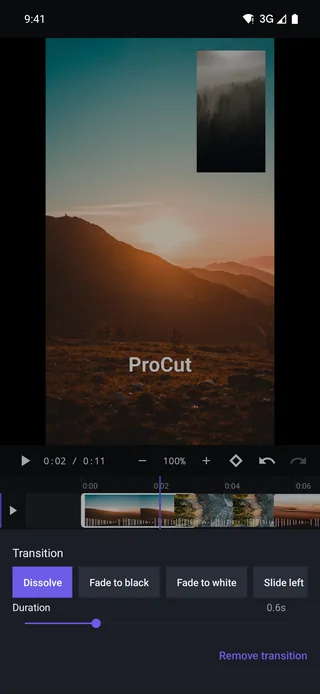
What “real overlap” means
Tap the join between two clips and pick a transition. Look at what happens to the timeline: the project gets shorter. That is the tell.
A 0.6-second dissolve takes 0.3 seconds from the end of the outgoing clip and 0.3 from the start of the incoming one, and plays both simultaneously in the middle. Both streams are being decoded and blended, frame by frame. It is the same model a desktop editor uses, and it is why the result reads as one continuous motion rather than as a dip through nothing.
The cheap alternative — fading clip A's opacity down over black, then clip B's up — costs no extra decoding, but there is a moment in the middle where the screen shows neither shot. On any footage with motion, you can see it.
Because a transition eats time, it needs frames to eat. If a clip is shorter than the transition needs, trim the transition down or lengthen the clip — ProCut will not invent footage that is not there.
The six transition families
| Transition | What happens | Best for |
|---|---|---|
| Dissolve | True cross-fade between two decoded streams | Passage of time; matching two similar shots |
| Fade to black / white | Through a solid colour, with independent in and out lengths | Chapter breaks, endings, hard resets |
| Slide | Four directions; the outgoing clip keeps playing as it leaves | Energetic sequences, product beats |
| Zoom | Push in or pull out across the cut | Going from wide to detail without a jump |
| Wipe | Hard or soft edge, four directions | Graphic, deliberate style |
| Blur swap | Both sides blur into each other | Hiding a mismatched cut — the workhorse |
If you only learn two, learn dissolve and blur swap. Dissolve is the invisible one. Blur swap is the rescue: when two shots simply do not cut together — wrong angle, wrong brightness, wrong lens — blurring both sides through the seam gives the eye something to follow while the mismatch happens.
Choosing a duration
The slider under the chips sets length; the screenshot shows 0.6s. As you drag, the engine re-plans the overlap and snaps the new boundaries onto the frame grid, so you never end up with a transition that starts halfway through a frame.
| Length | Feel | Typical use |
|---|---|---|
| 0.2–0.3s | Almost subliminal | Fast cutting, social edits, beat-matched sequences |
| 0.5–0.8s | Noticeable but calm | The default range for most cuts |
| 1.0–2.0s | Deliberately slow | Openings, endings, mood pieces |
One rule that survives contact with real projects: pick a length and reuse it. Six transitions of six different lengths in one video reads as indecision, not variety.
The audio cross-fade you did not have to add
Every visual transition gets a matching audio cross-fade automatically. Without one, a cut between two clips with different room tone produces an audible click or a jump in background noise — the single most common thing that makes an otherwise decent edit sound amateur.
Because the cross-fade is generated from the same overlap the picture uses, sound and picture always agree about where the join is, including after you drag the duration slider. There is more on lane-level mixing in the audio guide.
Why the GPU matters here
During a transition your device is decoding two video streams at once and blending them per pixel, per frame. On the CPU that is the moment a preview turns into a slideshow. ProCut hands the blend to the GPU through each platform's native media stack — media3 on Android, AVFoundation on Apple hardware — so preview stays smooth and export stays fast.
It also means preview and export run the same compositor. What you watch at the join is what ends up in the file.
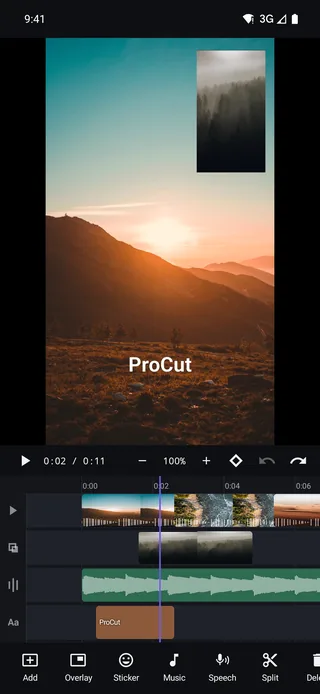
Where transitions actually belong
A short, unglamorous list from people who cut for a living:
- Most cuts should be cuts. A straight cut is invisible and costs nothing. Transitions are punctuation, not glue.
- Use them at structural joins — between sections, into and out of a montage, at the very start and end.
- Use one to rescue a bad match, which is what blur swap is for.
- Do not use one to fix pacing. If a cut feels wrong, the problem is almost always the timing of the cut, not the absence of a spin.
Choosing a transition, in one question
The decision is easier than the menu makes it look. Ask what the join is doing, and the answer picks itself.
| The join means… | Use | Why |
|---|---|---|
| Nothing — it is just the next shot | A hard cut | Invisible, and correct roughly 80% of the time |
| Time has passed | Dissolve or Fade | The oldest convention in editing; nobody has to be taught it |
| A new section begins | Wipe or Slide | Directional, deliberate, reads as a chapter break |
| Energy is rising | Zoom | Motion carries through the join instead of stopping at it |
| We are moving to somewhere darker or quieter | Fade to black | A full stop rather than a comma |
The single most common improvement available to a new editor is using fewer transitions, not more. A cut is a transition — the default one, and usually the right one.
Where transitions go wrong
- One on every join. If every cut is decorated, none of them mean anything, and the video reads as a slideshow.
- Too long. The default 0.6s is deliberately short. A two-second dissolve in a 30-second video spends 7% of the runtime on a join.
- Fighting the music. A transition that lands off the beat is more noticeable than no transition at all. Place the join first, then decorate it.
- Mixing styles. Dissolves in one half and zooms in the other reads as indecision. Pick a vocabulary and stay in it.
- Covering a bad cut. A dissolve does not fix a join that does not work; it only makes it slower.
Next: filters and colour adjustment, the other half of making two shots belong in the same video.
Frequently asked questions
Why did my video get shorter when I added a transition?
Because the transition consumes time from both clips — that overlap is what makes it a real blend rather than a fade through black. A 0.6-second transition removes 0.6 seconds of total duration.
Do transitions add a watermark or need Pro?
No. All core transitions are in the free tier, and ProCut never burns a watermark into an export on any plan.
Can I change a transition after applying it?
Yes. Tap the join again to swap the type, drag the slider to change duration, or use Remove transition to go back to a straight cut.
Joins that read as intentional.
Six GPU transition families with true overlap and automatic audio cross-fades — free, on every platform.
Keep reading
Split, trim and ripple delete
The four gestures that do 90% of editing, and why ProCut stores cuts as frame numbers instead of approximate seconds.
Audio mixing and waveforms
Independent audio lanes, real waveforms, per-clip volume, fades, and the levels that make music and speech coexist.
Filters and colour adjustment
Six looks, four adjustment sliders, and the discipline that turns mismatched footage into something that reads as a single piece.