Stickers: six categories, and a lane of their own
A sticker is the cheapest way to add a reaction, hide a mistake or point at something on screen. ProCut treats them as real timeline objects rather than as decals glued to the video — which is why yours can move, grow and leave on cue.
In short
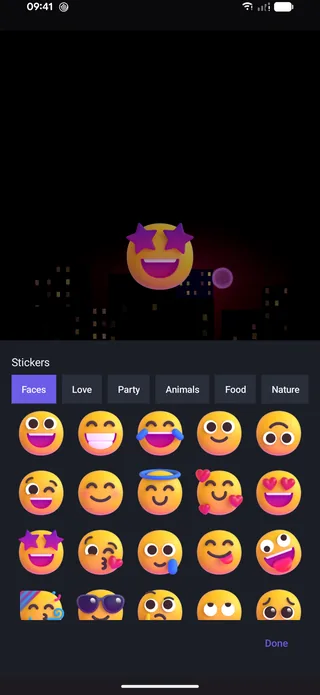
- Six categories — Faces, Love, Party, Animals, Food, Nature — of high-resolution 3D emoji.
- Stickers land on their own lane, so their timing is independent of your cuts.
- Pinch to scale, drag to position, twist to rotate; trim the clip to control exactly how long it stays.
- Keyframe scale and opacity for an entrance — a sticker that arrives reads as deliberate; one that blinks into existence reads as a mistake.
The sticker picker
Tap Sticker in the editor toolbar and the picker opens over the timeline with six category tabs and a scrolling grid.
| Category | Contains | Typical use |
|---|---|---|
| Faces | Expression emoji — star-struck, laughing, shocked | Reactions, comedy beats, reaction shots |
| Love | Hearts and affection | Couples, pets, thank-you posts |
| Party | Poppers, confetti, celebration | Announcements, milestones, launches |
| Animals | Dog, cat and creature faces | Pet videos, playful captions |
| Food | Dishes, drinks, ingredients | Recipes, restaurant posts, menus |
| Nature | Weather, plants, landscape motifs | Travel, outdoors, seasonal edits |
The art is high resolution 3D emoji rather than flat icons, so a sticker scaled up to fill a third of the frame still has clean edges on a 4K export.
The sticker lane
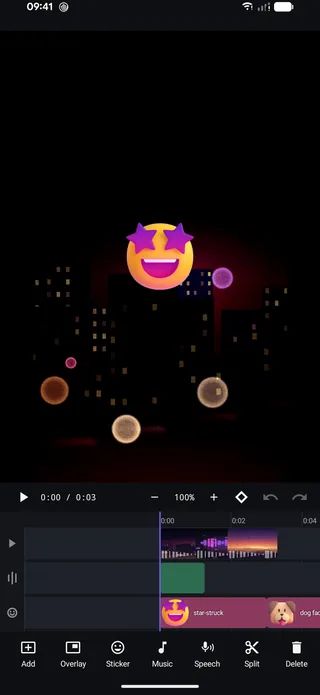
Look at the second screenshot: the stickers sit on their own row beneath the video lane, and the toolbar has grown a Sticker entry. Like the text and overlay lanes, it is free rather than magnetic — a sticker stays exactly where you put it in time no matter what you do to the clips above.
Multiple stickers can overlap in time and stack in space, which is how you build a row of reactions across the top of the frame or a burst of confetti around a subject.
Placing, sizing, rotating
Direct manipulation in the preview, exactly like an overlay:
- Drag to move it anywhere in frame.
- Pinch to scale.
- Twist with two fingers to rotate — a few degrees off vertical makes a sticker look placed rather than pasted.
Keep stickers inside the safe area for wherever you are posting. The same rules from the text guide apply: the bottom fifth of a vertical video belongs to the platform's own interface.
Timing and entrances
Trim the sticker clip to set how long it is on screen. Around one second is right for a reaction; longer than two and it stops being a punctuation mark and starts being furniture.
Then animate the entrance with keyframes:
- Pop — scale 60% → 110% → 100% over about six frames.
- Fade — opacity 0 → 100 over four frames, for something subtle.
- Drift — a small position change across the whole life of the sticker, so it never sits perfectly still.
Land the entrance on a beat in the music. A sticker that pops on the downbeat feels like part of the edit; the same sticker half a second later feels like an accident.
Four jobs stickers do well
- Reaction. The face you would pull, on screen, at the moment you would pull it.
- Emphasis. An arrow-adjacent emoji pointing at the thing you are talking about, held for as long as it takes to look.
- Cover. A sticker over a logo, a face or a number you would rather not publish — placed and, if the subject moves, keyframed to follow.
- Rhythm. Small stickers appearing on beats through a montage, which keeps the eye engaged during footage that is otherwise repetitive.
How many is too many
A workable limit: one sticker on screen at a time, and no more than one every five seconds, unless the whole video is deliberately maximalist. Stickers work by being surprising, and nothing is surprising the eighth time.
Using a sticker to cover something
One of the most practical uses has nothing to do with decoration: covering a face, a logo, a licence plate or a number you would rather not publish.
- Place a sticker over the thing at the first frame it appears.
- Scale it so it covers with margin — a cover that only just fits will expose an edge the moment the subject moves.
- If the subject moves, add position keyframes at a few points across the clip and let ProCut interpolate the path between them.
- Play it back at full speed and watch the edges, not the middle.
There is no automatic motion tracking in the shipping build, so this is a manual job. On a short clip with predictable movement, four or five keyframes is usually the whole task.
Layering stickers with text and overlays
Stickers, text and overlays each have their own lane and stack in a fixed order above the picture. Three combinations worth building once and reusing:
| Combination | How it is built | Where it fits |
|---|---|---|
| Reaction inset | Corner overlay + one sticker beside it | Commentary and reaction videos |
| Labelled detail | Sticker pointing at the subject + a short text clip | Tutorials, product close-ups |
| Celebration beat | Party sticker on the downbeat + a full-width title | Announcements and milestones |
The general principle is one element per idea. A sticker and a title and an overlay all arriving in the same half second is not emphasis, it is noise.
Related: overlays and picture-in-picture, which is the same idea with video instead of emoji.
Frequently asked questions
Can a sticker follow a moving subject?
Yes, by keyframing its position — set the sticker over the subject at a few points across the clip and ProCut interpolates the path between them. There is no automatic motion tracking in the shipping build.
Do stickers reduce export quality?
No. They are high-resolution 3D art composited on the GPU at your export resolution, so they stay sharp even at 4K.
Can I use several stickers at the same time?
Yes. Stickers stack on the sticker lane and can overlap in both time and space.
React without saying a word.
Six categories of 3D emoji, on their own lane, with pinch-to-scale and keyframed entrances — free.
Keep reading
Overlay and picture-in-picture
A second video layer with its own position, scale, rotation, opacity and grade — the basis of reaction videos, tutorials and product inserts.
Text, titles and captions
Text is a clip, not a sticker — trim it, keyframe it, stack it. Plus the safe-area rules that keep captions off the UI of every app you post to.
Templates and slot counts
3-Second Hook, Travel Beat, food and sale layouts — each with a stated duration and slot count, and each fully editable once you open it.