Text to speech: type it, tune it, drop it on the timeline
Some videos need narration and you are not going to record it — the room is loud, it is late, or you simply do not want your voice on the internet. ProCut's speech panel turns typed text into a voiceover clip you can trim, fade and mix like any other audio.
In short
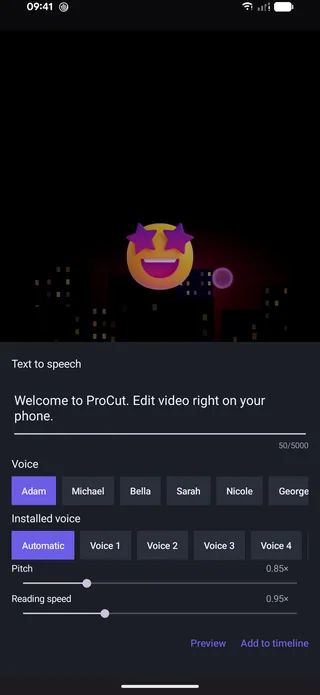
- Type up to 5,000 characters and pick from six named voices — Adam, Michael, Bella, Sarah, Nicole, George.
- An Installed voice row uses the voices already on your device, including the ones you have downloaded for other languages.
- Pitch and Reading speed are multipliers (0.85× and 0.95× in the screenshot) — small moves make a large difference.
- Preview before committing, then Add to timeline drops a normal audio clip you can trim, fade and duck.
What the panel offers
Open Speech from the editor toolbar and you get a text field with a
character counter — 50/5000 in the screenshot — a voice picker, two tuning
sliders, and two actions at the bottom: Preview and Add to
timeline.
Five thousand characters is roughly six minutes of speech, which is more than any single narration block should be anyway. For longer pieces, generate section by section — it gives you separate clips you can re-time independently, and it means changing one paragraph does not mean regenerating the whole thing.
Choosing a voice
| Row | What it is | Notes |
|---|---|---|
| Adam · Michael · George | Named male voices | Adam is the neutral default; George is warmer |
| Bella · Sarah · Nicole | Named female voices | Sarah reads level; Nicole is brighter |
| Installed voice | The voices already on your device | Automatic, plus Voice 1–4 depending on what you have downloaded |
The installed row is how you reach voices in languages beyond the named set — download them in your system settings first.
Pick a voice by listening to your actual script, not by name. A voice that sounds authoritative reading one sentence can sound wrong reading a list of instructions. Preview is free and instant; use it three or four times before committing.
Pitch and reading speed
Both sliders are multipliers against the voice's natural setting, and the screenshot shows them slightly off default — pitch 0.85×, reading speed 0.95×.
- Pitch below 1× reads as calmer and more serious. Below about 0.8× it starts to sound processed.
- Pitch above 1× reads as younger and more energetic; useful for short, upbeat social clips.
- Reading speed 0.9–0.95× is the most reliable adjustment in the panel. Synthesised speech at default speed almost always runs slightly fast for video, where the viewer is also reading text and watching pictures.
If a line sounds wrong, change the punctuation before you change the sliders. A comma buys a pause; a full stop buys a longer one; a sentence split in two fixes most awkward phrasing instantly.
Writing for the ear, not the page
Synthesised speech is unforgiving of writing that only works in print. What helps:
- Short sentences. One idea each. Sub-clauses that a reader can re-scan are lost on a listener.
- Spell out what should be spoken. Write "twenty per cent" rather than "20%", "four K" rather than "4K", if you want to be sure how it lands.
- Read it aloud yourself first. If you stumble, the synthesiser will too.
- Break paragraphs into separate generations. Separate clips are easier to re-time against the picture, and easier to fix one at a time.
It becomes an ordinary audio clip
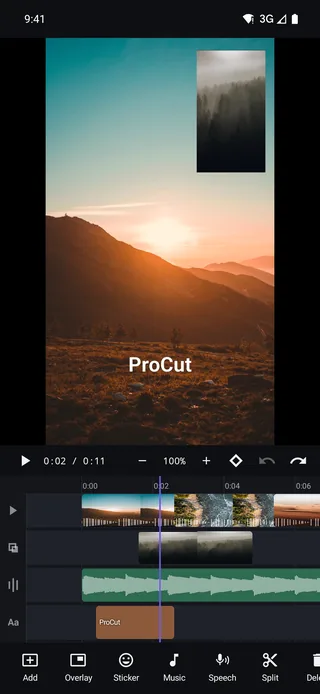
Tap Add to timeline and what lands on the audio lane is a normal clip. Everything in the mixing guide applies to it:
- Trim either end to tighten the beginning and end of a line.
- Drag it to align a sentence with the shot it describes.
- Set its volume, and keyframe the music lane down underneath it.
- Split it to put a pause between two sentences without regenerating anything.
That last point is the practical one: narration almost never lines up with picture on the first try, and being able to slice the audio into sentences and slide them around is faster than rewriting the script.
Where it earns its keep
- Tutorials and how-tos, where consistency across a series matters more than personality.
- Product and listing videos that need to be re-made every time a price or a spec changes — edit the text, regenerate, done.
- Multi-language versions of the same edit, using the installed voices for each language. ProCut's interface itself ships in 20+ languages.
- Anywhere you cannot record — a loud room, a shared space, a phone with wind on the microphone.
A script structure that fits a short video
Because you type the narration rather than improvising it, the script becomes an editing decision. A structure that reliably works for a 45-to-90-second video:
| Section | Length | Job |
|---|---|---|
| Hook | 1 sentence | State the payoff. No introductions, no throat-clearing |
| Context | 1–2 sentences | Why this matters, in the fewest possible words |
| Body | 3–5 short sentences | One idea per sentence, each over its own shot |
| Turn | 1 sentence | The thing the viewer did not expect |
| Close | 1 sentence | One instruction, held long enough to act on |
Total: roughly 130 to 200 words. At a reading speed of 0.95× that lands near a minute, which is the length most short-form narration wants to be.
Getting narration and picture to agree
Generated narration almost never matches your first cut. Three habits make the reconciliation quick:
- Generate before you fine-cut. Put the voiceover down first and cut picture to it, rather than cutting picture and then squeezing words in.
- Split at every full stop. One clip per sentence gives you blocks you can slide until each sits over the shot it describes.
- Use the gaps. Half a second of silence between sentences is not dead air — it is where the viewer looks at the picture. Do not close every gap.
When a line runs a beat long for the shot it covers, regenerate that one sentence at a slightly higher reading speed rather than re-cutting the picture around it.
Frequently asked questions
How much text can I convert at once?
Up to 5,000 characters per generation — roughly six minutes of speech. For longer narration, generate section by section so each block is a separate, independently re-timable clip.
Can I use other languages?
Yes, through the Installed voice row, which uses the voices available on your device. Download the language's voice in your system settings and it appears in that list.
Is the generated voiceover editable after I add it?
Yes. It arrives as a normal audio clip — trim it, split it, move it, set its volume and fades exactly like any other audio on the timeline.
Narration, without the microphone.
Six voices plus your device's own, pitch and speed control, preview, and a clip you can mix like any other.
Keep reading
Audio mixing and waveforms
Independent audio lanes, real waveforms, per-clip volume, fades, and the levels that make music and speech coexist.
Text, titles and captions
Text is a clip, not a sticker — trim it, keyframe it, stack it. Plus the safe-area rules that keep captions off the UI of every app you post to.
20+ languages, RTL included
Arabic to Vietnamese, with right-to-left layout, per-locale number formatting and a text tool that measures type against the frame.