Split, trim, ripple delete: cutting that lands on the frame
Editing is mostly four operations repeated a few hundred times. Get them under your thumb and everything else in an editor is decoration. Here is how ProCut handles split, trim, ripple delete and reorder — and what “frame-accurate” actually buys you.
In short
- Split cuts at the playhead on any lane; the result stays selected so you can immediately delete or move one half.
- Trim drags either edge of a clip while the preview scrubs live, so you see the frame you are landing on.
- Ripple delete removes a clip and pulls everything after it back — no black gap left behind.
- Cut points are stored as frame numbers against the project rate, so what you trim is exactly what the exporter writes.
ProCut puts the whole cutting toolkit in one row under the timeline, so nothing you need every ten seconds is more than one tap away.
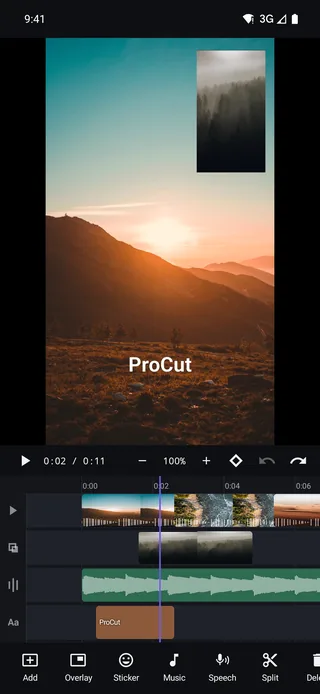
The toolbar under the timeline
In the screenshot the row reads Add · Overlay · Music · Split · Delete · Duplicate · Freeze. The row is contextual — select a sticker clip and it offers sticker actions, select a text clip and it offers text actions — but the cutting verbs are always reachable.
| Action | What it does | When you reach for it |
|---|---|---|
| Split | Cuts the selected clip at the playhead | Isolating a moment, changing speed of one part only |
| Delete | Removes the selected clip | Dropping a take, on any lane |
| Duplicate | Copies the clip with every effect intact | Repeating a beat, building a stutter |
| Freeze | Holds the current frame as a real segment | Punctuating a reveal, buying time under a title |
Split: cut at the playhead
Park the playhead where you want the cut, select the clip, tap Split. The clip becomes two clips that butt up against each other with no gap and no re-encode. Both halves keep everything the original had — its speed setting, its filter, its keyframes, its volume.
That last point is not free behaviour; it is a design decision. Splitting a clip with a keyframed zoom on it re-times the animation across the two halves rather than resetting it, so the motion continues through the cut as though nothing happened. There is a whole post about that in the keyframes guide.
The split-and-delete rhythm
Most trimming in practice is two splits and a delete: cut before the bad part, cut after it, delete the middle. Because the result of a split stays selected, that is three taps with no re-selection in between.
Trim: drag the edge, watch the preview
Grab either end of a clip and drag. Two things happen at once: the clip's edge follows your finger, and the preview above scrubs to the frame under that edge. You are not trimming blind against a thumbnail from ten seconds ago — you see the actual in-point or out-point as you choose it.
Trimming never destroys media. The frames you push past are still in the source file, and dragging the edge back out brings them back. A clip's handles are limited only by the length of the underlying media.
Ripple delete versus plain delete
This is the distinction that trips people up when they move from a phone editor to a real timeline.
- Delete on the main video track ripples by default. The track is magnetic: the clip vanishes and everything downstream slides back to close the hole. Your video gets shorter and there is no black flash.
- Delete on a free lane — overlay, audio, text — leaves a hole, because those lanes are positioned against time, not against their neighbours. Moving a caption should not drag the next caption along with it.
Want a gap on the main track anyway — a deliberate beat of black? Hold to lift the clip out instead of deleting it, or drop a colour clip in place. The magnet is there to prevent accidental gaps, not to forbid intentional ones.

Duplicate and reorder
Duplicate copies a clip along with its full state: speed curve, filter and adjust values, transform, volume, keyframes. It is the fastest way to build a repeated stutter effect — duplicate three times, shorten each copy, done.
Reorder is drag and drop. Drag along a lane to change the running order, or drag across lanes to move a clip from overlay down onto the main track. Everything snaps to the frame grid on release.
Roll, slip and slide
Three cuts that desktop editors have and most phone editors do not. All three change a cut without changing the total duration of your video, which matters when the edit is already locked to music.
| Cut | What moves | Total duration |
|---|---|---|
| Roll | The shared boundary between two clips | Unchanged |
| Slip | Which part of the source is used, inside a fixed slot | Unchanged |
| Slide | The clip's position, eating into its neighbours | Unchanged |
Slip is the one worth learning first: your clip stays exactly seven seconds long in exactly the same place, but you shift which seven seconds of the take you are using. Nothing else in the edit moves.
Why frame-accuracy matters
ProCut stores cut points as frame numbers against the project frame rate, using a rational time model shared by the Android, Apple and Windows engines. Two consequences you feel:
- What you trim is what you get. The exporter reads the same numbers the timeline shows, so a cut does not drift by a frame between preview and file.
- Nothing accumulates error. Timelines that store seconds as floating-point numbers slowly go out of sync over a long edit. Whole-frame arithmetic cannot drift.
Next: speed curves, where a single clip stops having one duration and starts having a shape.
Frequently asked questions
Does splitting a clip re-encode the video?
No. A split is an edit to the timeline model — it changes where a clip starts and stops reading its source. Encoding happens once, at export.
Can I undo a delete?
Yes. Every edit goes onto one unlimited undo stack, and ripple deletes are restored with the following clips pushed back out where they were.
Is trimming destructive to my original file?
No. ProCut never writes to your source media. Trimming changes the in and out points the project reads; dragging the edge back out restores the frames.
Cut it down to the frame you meant.
Split, trim, ripple delete, duplicate and reorder — free, on a real timeline, with unlimited undo.
Keep reading
The multi-track timeline, lane by lane
Video, overlay, audio and text lanes on one ruler — with pinch zoom, magnetic snapping, thumbnail strips and real waveforms.
Speed curves, ramps and presets
Speed is a curve, not a number. Four presets, draggable control points, and a duration readout that updates as you bend it.
Export presets and 4K HEVC
720p, 1080p, 1080p high, 4K and 4K HEVC — plus a photo export of the current frame, all through your device's hardware codec.