Batch export: queue every project, then walk away
Exporting one video is a tap. Exporting eight — a week of shorts, a set of product clips, every version of a client edit — used to mean opening each project, tapping Export and waiting. Batch export turns that into one sheet: tick the projects, pick a resolution once, and ProCut works through the list on its own.
In short
- Open Projects → Batch export, tick any number of projects and choose 720p, 1080p, 4K or 4K HEVC.
- Jobs run one at a time on the hardware encoder, at up to 60 fps, while the app is open. You can keep editing meanwhile.
- Finished videos land in your gallery. A failed job is retried once automatically and then shows why it failed.
- Each project steps down to what your phone can encode, so a 4K batch never dies halfway on an older device.
Open the sheet
Go to the Projects tab. In the top-right corner, next to the title, is Batch export. Tap it and a sheet slides up with three parts: your projects as a checklist, the resolution chips, and the queue underneath.
The header button doubles as a status line: while a batch runs it reads Exporting 2/5, so you can see progress from the Projects tab without opening the sheet again.
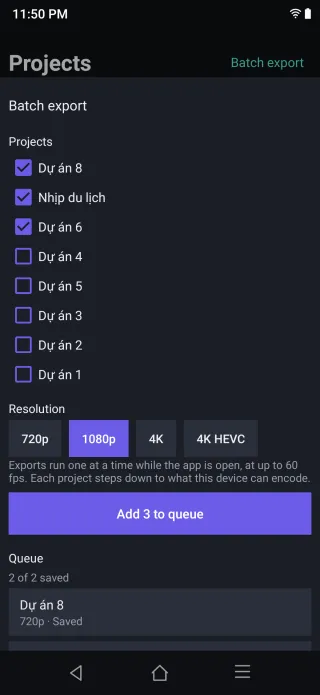
Pick projects and a resolution
Tick every project you want. They are listed newest first, the same order as the Projects tab. Then choose one resolution for the whole batch:
- 720p — quick drafts and messaging apps.
- 1080p — the safe default for TikTok, Reels and Shorts.
- 4K — H.264 master files that play everywhere.
- 4K HEVC — roughly half the size of 4K H.264 at similar quality; best for archiving. See the export guide for the trade-off.
The button counts your selection — Add 3 to queue. Tap it and the jobs join the queue; on Android the ticks clear so you can pick the next set straight away. A common pattern: add everything at 1080p for posting, then add your two best edits again at 4K HEVC for your archive.
On older Android versions (7–9) ProCut asks for gallery access the first time you add a batch, because that is the only way to save into the gallery there. Newer versions need no permission at all.
How the queue runs
A phone has one hardware video encoder, so jobs run strictly one after another. Running two at once does not make it faster; it makes the encoder refuse. Each job uses your export frame rate setting (up to 60 fps) and, if it is on, your loudness normalisation setting, exactly like a single export from the editor.
Before each job starts, ProCut checks what your device can actually encode for that project. Ask for 4K on a phone whose encoder stops at 1080p, and that job exports at 1080p instead of failing. A 30 fps project stays at 30 fps even if the batch allows 60.
The queue belongs to the app, not to the sheet. Close the sheet, open the editor, keep cutting — the batch keeps going. If you try to start a normal export from the editor while it runs, ProCut tells you a batch is in progress instead of fighting it for the encoder.
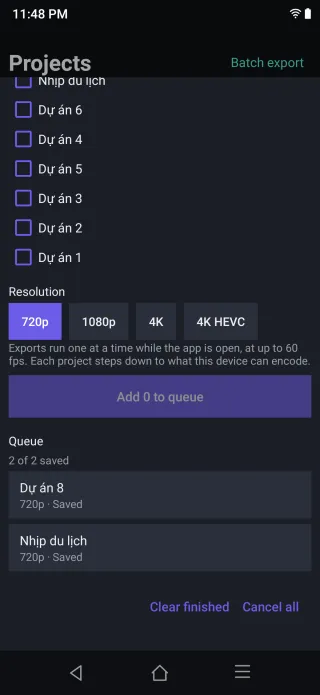
Reading the job list
Each row shows the project name, the resolution it was queued at, and its state:
- Waiting — in line. Tap Cancel to drop it.
- Exporting 42% — encoding now. Cancel stops it and deletes the partial file.
- Saving to gallery… — encoding is done and the file is being copied into your gallery. Large 4K files take a few seconds here.
- Saved — the video is in your gallery, in the ProCut album.
- Waiting to retry — the first attempt failed; ProCut will try once more on its own.
- Failed — both attempts failed. A short technical reason appears under the row; tap Retry to try again.
- Project was deleted — you removed the draft after queueing it. Nothing to retry.
Above the list, a summary line such as 3 of 5 saved tells you where the batch stands. Clear finished tidies away saved, failed and cancelled rows; Cancel all stops everything.
Tips for big batches
- Keep ProCut open. There is no background service, so if the system closes the app, unsaved jobs stop. Plug in and leave the screen on for long 4K batches.
- Check free space first. A minute of 4K is roughly 300–400 MB while it is being written. HEVC halves that.
- Mix resolutions in two passes. One resolution per add, but you can add as many times as you like.
- Send us the failure line. If a job fails twice, a screenshot of the row with its reason is the fastest bug report you can give — report it here.
Fixed in Android 1.0.31: the stuck “Saving to gallery…”
Some of you reported a batch that sat on Saving to gallery… for minutes and then failed — mostly on projects with music or voice-over when loudness normalisation was on. The cause was the audio step that evens out loudness: in a narrow case it kept producing silence after the end of the video, so the file never finished. ProCut for Android 1.0.31 fixes it; the same projects now save in seconds, and the file length matches the project exactly. Thank you to everyone who sent screenshots.
Frequently asked questions
Can I keep editing while a batch export runs?
Yes. You can browse, open projects and edit while the queue runs. The one thing you cannot do is start a second export from the editor at the same time — the phone has one hardware encoder, so ProCut tells you to wait or cancel the batch in Projects.
Does Batch export keep running if I close the app?
No. The queue lives as long as the app is open, including in the background for a short while. If the system closes ProCut, jobs that were not saved yet stop and need to be added again.
Where do the exported videos go?
Into your phone's gallery, in the ProCut album (Movies/ProCut on Android). Each file is named after the app plus a timestamp, so a batch never overwrites an earlier export.
Why did one project come out at a lower resolution than I picked?
Each project steps down to what your device can encode. If you queue 4K on a phone whose encoder tops out at 1080p, that job exports at 1080p instead of failing.
Export the whole week in one go
Batch export is free on every plan, with no watermark at any resolution.
Keep reading
Export: five presets, no watermark
720p to 4K HEVC on the hardware encoder, plus a still-frame photo export — and which preset each platform actually wants.
Proxy editing and performance
Imports build a 960p proxy for the timeline while export reads your original file — the reason a five-year-old phone can cut 4K footage.
Free vs Pro, and what Pro unlocks
The whole editor is free, including 4K export with no watermark. Pro pays for licensed content and for cloud GPU time.